Managing multiple monitors is easier when your pointing device delivers precise movement without requiring constant arm travel. The best computer trackballs for multiple monitors combine accurate cursor control, comfortable hand positioning, and convenient connectivity.
This roundup compares ten trackball mice and trackball designs, from compact thumb-operated models to large finger-operated options with programmable controls and flexible wireless connections.
Best 10 Computer Trackballs for Multiple Monitors Picks for 2026
Premium Wireless Pick

- Bluetooth wireless connectivity
- Ergonomic design with 8 buttons
- Rechargeable battery included
Best For: Wireless multi-monitor office setups
Large-Hand Wired Value

- Large 44mm finger-operated ball
- Five adjustable DPI levels
- USB-A wired plug-and-play setup
Best For: Right-handed large-hand office users
Most Flexible Connection

- Bluetooth, 2.4GHz, and wired modes
- Ambidextrous low-profile design
- Rechargeable battery lasts up to 4 months
Best For: Multi-device and shared workstation setups
Quiet Ergonomic Choice
- 21.7° ergonomic tilt stand
- Silent controls for shared spaces
- Connects with up to 3 devices
Best For: Quiet multi-screen office work
Precision Desk Classic
- 55mm ball with optical tracking
- Scroll ring and detachable wrist rest
- Wired USB-A connection
Best For: Precise, comfortable wired multi-monitor control
Wireless Command Center

- Three connection modes for up to three devices
- Ten programmable buttons
- Rechargeable battery and silent clicks
Best For: Right-handed multi-device productivity setups
Compact Scroll Navigator

- Optical tracking for precise movement
- Scroll ring for quick document navigation
- Ambidextrous design with wrist rest
Best For: Simple, comfortable wired multi-monitor navigation
Best Adjustable Angle

- Adjustable 0°/18° ergonomic tilt
- Three-device Bluetooth and 2.4GHz wireless
- Rechargeable with five DPI settings
Best For: Right-handed users building a flexible multi-device workstation
Best Long-Battery Pick

- Ergonomic thumb-controlled design
- Up to 18 months from one AA battery
- Bluetooth and Logi Bolt connectivity
Best For: Comfort-focused office users with compact multi-monitor desks
Best for Larger Hands

- 16° vertical ergonomic angle
- Three-device Bluetooth and 2.4G switching
- Rechargeable 500mAh battery
Best For: Medium- to large-handed users needing a comfortable multi-monitor controller
Premium Wireless Pick – Logitech MX Ergo S
For shoppers comparing computer trackballs for multiple monitors, the Logitech MX Ergo S emphasizes wireless convenience and an ergonomic design. Bluetooth connectivity and eight buttons make it a practical choice for navigating a multi-screen workstation without adding cable clutter.
Best For: Users who want a premium Bluetooth trackball with multiple buttons for office multitasking.
Pros:
- Bluetooth connectivity supports a clean, cable-free desk setup.
- Ergonomic design is suited to extended computer use.
- Eight buttons provide more control options than basic trackballs.
- Rechargeable lithium-polymer battery is included.
Cons:
- Wireless operation depends on keeping the included battery charged.
- The supplied notes do not specify operating-system compatibility or DPI settings.
The MX Ergo S is a strong fit when a tidy wireless setup and extra controls matter more than detailed customization specifications. Its ergonomic design and Bluetooth connection are especially useful beside multiple displays.
Large-Hand Wired Value – PORLEI TM552 Trackball
For computer trackballs for multiple monitors on a budget, the PORLEI TM552 combines a large 44mm finger-operated ball with a wired USB connection. Its right-handed, hand-conforming shape and adjustable DPI are aimed at precise cursor placement with limited hand movement.
Best For: Right-handed users with larger hands who prefer wired precision for office or design work.
Pros:
- 44mm trackball is designed for finger control and precise positioning.
- Hand-conforming design is intended to reduce wrist pressure.
- Five customizable DPI levels support different cursor-speed preferences.
- USB-A connection requires no drivers and works with Windows and macOS.
Cons:
- Wired operation limits desk flexibility compared with wireless models.
- Forward and backward buttons are not supported on Mac systems.
- It is not recommended for gaming.
The TM552 makes practical sense for a fixed workstation where dependable wired connectivity and a larger control surface are priorities. Its DPI options can help when moving the pointer across multiple screens.
Most Flexible Connection – Kensington SlimBlade Pro
The Kensington SlimBlade Pro is a versatile option among computer trackballs for multiple monitors, offering Bluetooth, 2.4GHz wireless, and wired modes. Its ambidextrous low-profile design, large 55mm ball, and rechargeable battery suit users who want flexible placement and reduced wrist movement.
Best For: Left- or right-handed users who need multiple connection options and long battery life.
Pros:
- Supports Bluetooth, 2.4GHz wireless, and wired USB connections.
- Ambidextrous low-profile shape is designed for extended comfort.
- Large 55mm ball uses dual sensors for accurate tracking and scrolling.
- Rechargeable battery provides up to four months of use per charge.
Cons:
- Its 0.48 kg weight is relatively substantial for a desktop pointing device.
- KensingtonWorks software is required for the personalized programmable-button experience.
The SlimBlade Pro stands out when a multi-monitor setup may move between desks or devices. Its connection flexibility and ambidextrous shape make it one of the easiest models here to adapt to different workflows.
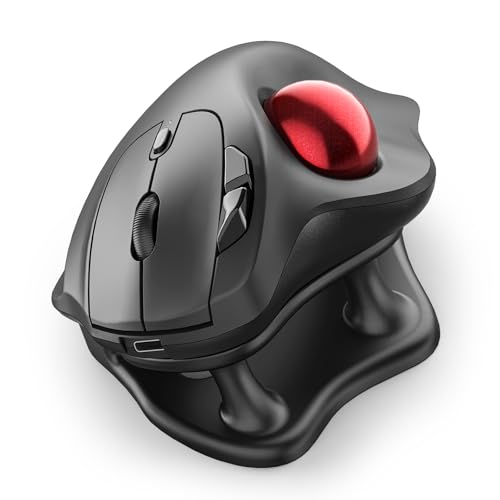
Quiet Ergonomic Choice – Nulea M511 Wireless Trackball
For quiet computer trackballs for multiple monitors, the Nulea M511 pairs a 21.7° tilt stand with thumb control and silent operation. Bluetooth and USB receiver support let it connect with up to three devices, while four DPI levels accommodate both precise work and faster pointer movement.
Best For: Right-handed users who need quiet, multi-device control in offices or shared spaces.
Pros:
- 21.7° tilt stand promotes a more natural wrist position.
- Silent trackball, buttons, and scroll wheel suit quiet environments.
- Bluetooth and USB receiver support switching among up to three devices.
- Four DPI settings range from 400 to 1600 for flexible cursor control.
Cons:
- All buttons are fixed and cannot be programmed.
- Compatibility is listed for Windows and macOS, with newer minimum OS versions specified.
- The design is right-handed rather than ambidextrous.
The M511 is a compelling everyday option when silence, ergonomic tilt, and device switching are more important than button customization. It is particularly well suited to a quiet multi-screen office workflow.
Precision Desk Classic – Kensington Expert Trackball
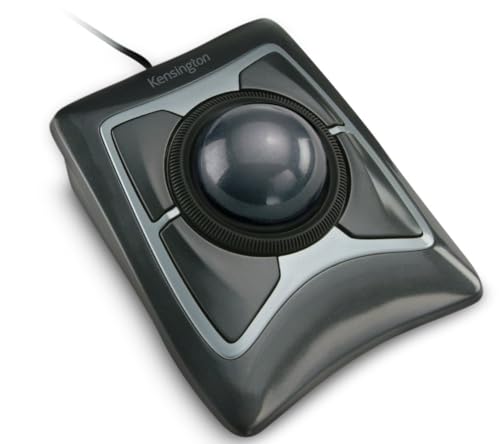
Kensington Expert Trackball Mouse (K64325), Black Silver, 5"W x 5-3/4"D x 2-1/2"H
Check Price On AmazonFor computer trackballs for multiple monitors, the Kensington Expert Trackball combines a large 55mm ball with optical tracking for controlled cursor movement across expansive desktop setups. Its wired USB-A connection provides reliable operation without battery management.
Best For: Multi-monitor users who want a precise, ambidextrous wired trackball with a scroll ring and wrist support.
Pros:
- Large 55mm ball and Diamond Eye optical tracking support precise cursor control.
- Scroll ring makes vertical navigation through pages and documents convenient.
- Detachable wrist rest and ambidextrous design support extended use by either hand.
- Customizable buttons, cursor speed, and scroll speed through KensingtonKonnect on supported systems.
Cons:
- Wired USB-A connectivity limits cable-free desk setups.
- KensingtonKonnect customization is not supported on Windows ARM-based computers and is limited on ChromeOS.
- The relatively large design may require more desk space.
The Expert Trackball is a practical choice when accuracy, stable connectivity, and comfortable navigation matter more than wireless flexibility. Verify software compatibility if you use ChromeOS or a Windows ARM-based device.
Wireless Command Center – ELECOM HUGE Plus Trackball
The ELECOM HUGE Plus is a flexible option for computer trackballs for multiple monitors, offering a large 52mm ball, 10 programmable buttons, and three connection modes. Bluetooth, 2.4GHz wireless, and wired USB-C support make it easy to adapt the trackball to different workstations and devices.
Best For: Right-handed power users who need extensive shortcuts, quiet clicks, and multi-device connectivity.
Pros:
- Large 52mm ball provides fluid, precise control with an ergonomic shape.
- Tri-mode connectivity supports Bluetooth, 2.4GHz wireless, and wired USB-C use.
- Ten programmable buttons can streamline navigation and productivity shortcuts.
- Rechargeable battery offers up to five months of use per charge, according to the supplied specifications.
Cons:
- Right-handed design is not suited to left-handed users.
- At 291 g, it is heavier than a lightweight conventional mouse.
- Its extensive controls may be more than casual users need.
With quiet clicks, rechargeable power, and connections for up to three devices, the HUGE Plus is well suited to complex workstations. Its 10-button layout is especially useful when moving between screens and applications frequently.
Compact Scroll Navigator – Kensington Orbit Trackball
The Kensington Orbit with Scroll Ring offers a straightforward way to manage computer trackballs for multiple monitors without relying on a traditional mouse. Optical tracking, an ambidextrous layout, and a dedicated scroll ring support efficient cursor movement and document navigation.
Best For: Users who want a compact, comfortable wired trackball with simple controls and easy scrolling.
Pros:
- Optical tracking provides precise cursor movement with less hand travel.
- Unique scroll ring simplifies movement through webpages and documents.
- Ambidextrous design accommodates right- and left-handed users.
- Detachable wrist rest supports a comfortable hand position during longer sessions.
Cons:
- Only two buttons provide less customization than models with larger button arrays.
- Wired USB connectivity offers no wireless option.
- Customization depends on Kensington’s downloadable software and supported operating systems.
The Orbit is a focused, easy-to-use choice for multi-monitor work where scrolling and comfortable cursor control are priorities. Choose another model if you need many programmable shortcuts or wireless connectivity.
Best Adjustable Angle – SABLUTE MAM1 Pro
For computer trackballs for multiple monitors, the SABLUTE MAM1 Pro combines adjustable ergonomics with three-device wireless connectivity. Its 0° or 18° tilt and five DPI settings let you adapt hand position and cursor speed for different screens and tasks.
Best For: Right-handed users who want a rechargeable trackball with adjustable tilt and multi-device switching.
Pros:
- Adjustable 0°/18° angle supports different wrist positions.
- Connects to up to three devices through Bluetooth and 2.4GHz wireless.
- Five DPI levels from 800 to 4800 support varied monitor sizes and workflows.
- Rechargeable USB-C battery, quiet clicks, and optional ambient backlight.
Cons:
- Right-handed design limits suitability for left-handed users.
- The included customization driver is not compatible with Mac OS.
- New trackball users may need one to two weeks to adjust.
The MAM1 Pro is a flexible option for a multi-monitor desk, particularly when you want to move between a PC, laptop, and tablet without adding another mouse. Its adjustable angle and high DPI ceiling make it easy to tailor, though Mac users should rely on built-in settings rather than the driver.
Best Long-Battery Pick – Logitech ERGO M575S
The Logitech ERGO M575S is a practical choice among computer trackballs for multiple monitors when desk space and long-term comfort matter. Its thumb-operated ball allows cursor movement without shifting the mouse, while Bluetooth or the included Logi Bolt receiver handles wireless connection.
Best For: Office users who prioritize ergonomic support, quiet clicks, and very long battery life.
Pros:
- Sculpted shape supports a relaxed hand and improved forearm posture.
- Thumb control works well in compact or space-saving setups.
- Bluetooth and Logi Bolt receiver provide two wireless connection options.
- Included AA battery is rated for up to 18 months of use.
Cons:
- Only three customizable buttons are provided.
- Its 2000 DPI maximum offers less speed adjustment than some alternatives.
- Right-handed design is not intended for left-handed use.
For a multi-monitor office setup, the M575S emphasizes steady comfort and simple operation rather than extensive hardware customization. It is especially appealing if you want a low-maintenance trackball that can stay on a desk for months between battery changes.
Best for Larger Hands – TECKNET Vertical Trackball
The TECKNET Wireless Trackball Mouse is designed for users who want computer trackballs for multiple monitors without needing much desk movement. Its 16° vertical angle, thumb control, and three-device Bluetooth/2.4G connection support comfortable navigation across a broad workspace.
Best For: Medium- to large-handed right-handed users seeking a rechargeable, angled trackball.
Pros:
- 16° vertical angle is designed to encourage a more natural forearm position.
- Pairs with up to three devices using two Bluetooth connections and 2.4GHz wireless.
- 500mAh rechargeable battery can provide a full day after 15 minutes of charging.
- Six buttons and five DPI levels provide useful control options.
Cons:
- Its larger 5.5-by-4.1-by-2-inch design may be less suitable for small hands.
- Maximum sensitivity is 1200 DPI, limiting cursor-speed range for some users.
- Users new to trackballs may need one to two weeks to adapt.
The TECKNET is a strong fit when hand size and rechargeable convenience are priorities. Its lower DPI ceiling may be less appealing for very high-resolution displays, but the angled shape and three-device switching are useful for everyday multi-monitor work.
How We Picked the Best Computer Trackballs for Multiple Monitors
We focused on features that matter during extended, multi-display use: tracking precision, ball size and placement, ergonomic support, connection options, scrolling, customization, and overall desk efficiency. Wireless models were considered for Bluetooth and 2.4GHz flexibility, while wired options remain useful for consistent connectivity and minimal setup.
Because hand size and control preferences vary, this list includes thumb-operated trackballs, finger-operated designs, adjustable-angle models, and options with larger balls for finer movement. Product specifications and stated features were used to distinguish everyday office models from more configurable choices.
Quick Comparison
| Best For | Look For |
|---|---|
| Most users | Comfortable shape, dependable wireless connection, and straightforward controls |
| Large hands | Oversized body and a 44mm or 52mm ball |
| Precise cursor work | Finger-operated ball, adjustable sensitivity, and stable palm support |
| Flexible setups | Bluetooth, 2.4GHz wireless, and wired connection options |
| Small desks | Compact footprint and low cable or receiver clutter |
Key Buying Factors for Computer Trackballs for Multiple Monitors
Ball Position and Control
Thumb-operated models are familiar to many mouse users and can be fast for general navigation. Finger-operated trackballs often provide more deliberate control, which can help when moving between displays or selecting small interface elements. Larger balls generally offer smoother, more gradual movement but may require a short adjustment period.
Ergonomics and Hand Fit
Look for a palm rest, a supportive body shape, and controls that do not force your fingers into awkward positions. Adjustable tilt can reduce wrist extension, while a wider design may be more comfortable for large hands. A trackball should let your hand remain mostly stationary without creating pressure points.
Connectivity and Power
Bluetooth is convenient for laptops and systems with limited USB ports; a 2.4GHz receiver can provide simple plug-and-play performance. Some models offer both, plus a wired mode. Rechargeable batteries reduce disposable-cell waste, while replaceable batteries can be preferable for easy long-term maintenance.
Scrolling and Customization
A dedicated scroll wheel or ring is important for long documents, web pages, and spreadsheets. Programmable buttons are useful for switching applications, copying and pasting, or moving between workflows, but simpler layouts may be better if you prefer minimal setup.
Who Should Buy Which Computer Trackballs for Multiple Monitors?
Choose a thumb-operated ergonomic model if you want the easiest transition from a conventional mouse. Pick a finger-operated or large-ball design if precision and reduced arm movement are your priorities. Buyers with large hands should favor roomier bodies and oversized balls, while compact desks benefit from wireless models with small footprints.
For demanding multi-monitor work, prioritize comfort and dependable tracking over the maximum number of buttons. The right choice is the model that keeps your hand relaxed while making cursor movement, scrolling, and display-to-display navigation feel natural.
